Motu Patlu AI Video Editing Prompt – A new trend is taking over Instagram where people are creating viral AI videos featuring the Motu Patlu theme with their own village or city names. These videos are gaining millions of views, and many creators are joining the trend. In this article, you’ll learn how to create this viral Motu Patlu AI edit step by step. From generating the image to creating the final video, we’ll guide you through the complete process.
The Process Of This Video Editing
First, let’s understand how this editing works. Everything in this video is generated using AI—no real footage is used. Both the image and the video are created with AI tools. The process begins by generating an AI image, which is then converted into a video.
One of the best features of this editing style is that you can customize the dialogue however you like. You can make the character speak your own words, mention your village or city, or add any custom text you want. Once the image is ready, it is transformed into a realistic AI video. Now, let me explain the complete process step by step.
How To Create AI Image First?
The first step is creating the AI image. We have already provided several image prompts in this article, so simply choose the one that suits your needs and copy it.
Next, open ChatGPT, paste the prompt, and click the + icon to upload your reference photo. You can use any photo you want. After uploading the image, click Generate, and ChatGPT will create the AI image for you. Keep in mind that different image prompts produce different styles of images, and each style requires its matching video prompt. So, make sure you use the correct image and video prompt together for the best results.
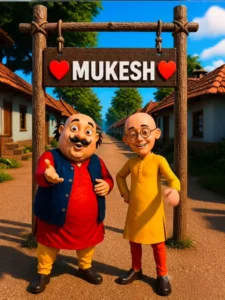
Create a high-quality 3D cartoon-style scene inspired by classic Indian animation. Two funny cartoon friends stand under a rustic wooden hanging signboard in the middle of a beautiful Indian village street. The left character is a chubby man with a big black moustache, wearing a red kurta, yellow pajama, dark blue waistcoat, and black shoes. The right character is a slim bald man with round glasses, wearing a yellow kurta, red pants, and black shoes. Both are smiling happily and facing the camera.
The wooden signboard is suspended with thick ropes between two wooden poles. On the signboard, display the text:

❤️ [YOUR NAME] ❤️

Replace only *[YOUR NAME]* with any custom name while keeping the same bold white 3D font, centered alignment, red heart icons on both sides, identical size, spacing, perspective, lighting, shadows, and wooden texture. Keep everything else exactly the same.
Background: traditional Indian village with tiled-roof houses on both sides, green trees, blue sky with soft clouds, warm golden sunlight, cinematic composition, vibrant colors, ultra-detailed textures, realistic lighting, shallow depth of field, 8K, HDR, Pixar-quality 3D render.
Ratio 9:16
Video Prompt –
Create a 10-second ultra-realistic 3D animated Video using the uploaded image as the exact reference. Keep Motu, Patlu, their clothes, expressions, and the highway background unchanged. Add natural lip-sync, blinking, facial expressions, hand gestures, and slight handheld camera movement. Motu smiles, waves, and says: ”दोस्तों, अब हमें लोकेश भाई से मिलने जाना है। Now Patlu speaks.”तो जल्दी से इस वीडियो को चार लोगो के पास शेयर कर दो।!” Now Motu speaks.” अगर अपने नाम की वीडियो बनवाना चाहते हो तो इस वीडियो को लाइक करके comment में अपना नाम लिख दे!” Add realistic highway ambience, passing vehicles, birds, light wind, cinematic lighting, smooth animation, 4K, vertical 9:16
How To Generate This Video?
To create the video, we will use Flow. Several video prompts have also been provided in this article. Choose the video prompt that matches the image you generated.
Now, open the Google Flow website using the link provided below. Sign in to your account, create a New Project, and click the + icon to upload your AI-generated image.
After uploading the image, paste the video prompt into the prompt box. You can customize the dialogue by changing the text, adding your village or city name, or including any words you want the character to speak. Once everything is ready, click Generate and wait a few moments. Your AI video will be created exactly as you imagined.
Conclusion
That’s how you can easily create a viral Motu Patlu AI video for Instagram. I’ve explained the complete process in a simple way. Just follow each step carefully, and you’ll be able to create your own personalized AI video without any difficulty.